

Bleeps
Bleeps

Chat on the air.
Just type and press Enter.

Bleeps is a free keyboard chat mode for radio amateurs. Your line goes out as a narrow four-tone signal in the passband of your SSB or data radio, and everyone on the frequency reads it in a chat window. No time slots, no fixed exchange — just text, and emoji 🙂.

Made for full duplex (QO-100), just as good in simplex · Free for Windows 10 and 11 · Hamlib included · open protocol

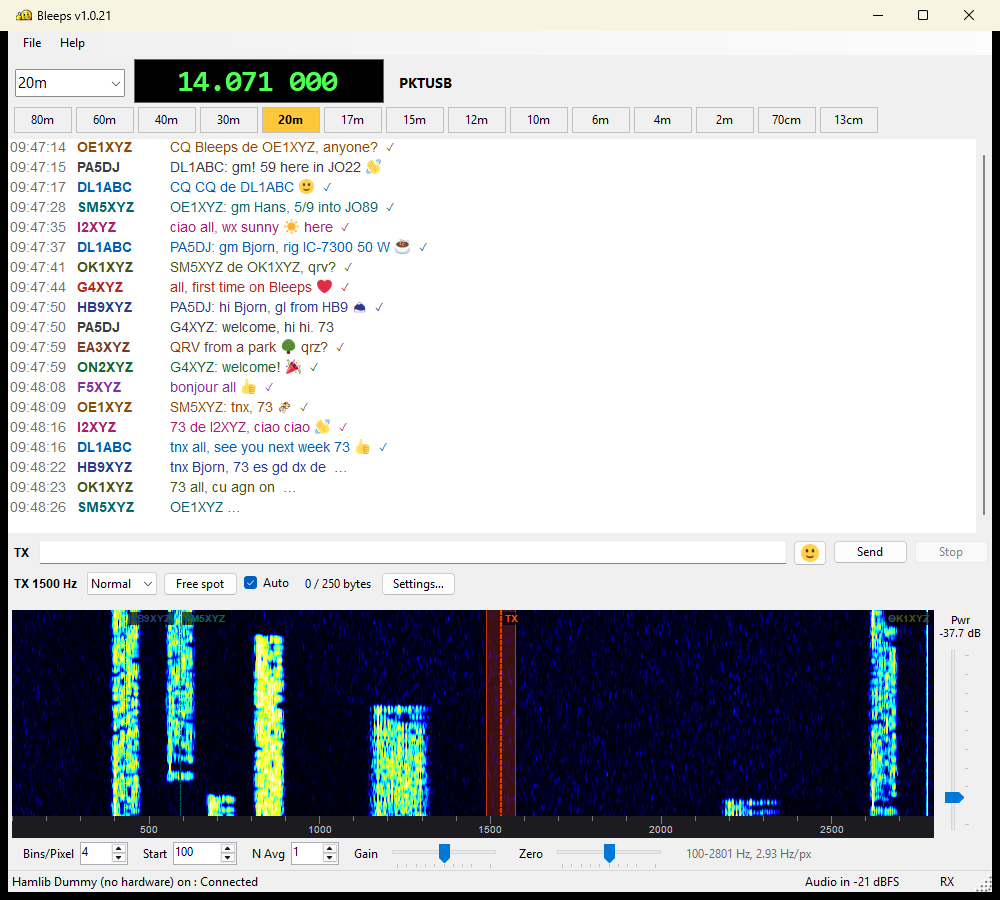
Bleeps on 20 m: ten stations chatting, the chat window above and the waterfall with their signals below
Ten stations on 20 m. Every line was decoded by Bleeps from the signals in the waterfall; the ones still coming in end in … and a ✓ means the message arrived complete and checked.
What it does

A chat room on every band

Bleeps sits next to your radio like WSJT-X does: the same sound card, the same cable, the same way of picking a band. What comes out is a conversation instead of a report.

Designed for full duplex

Made for QO-100 — at home on every band

Bleeps was designed for full duplex, the way QO-100 works: you send on the uplink and hear the downlink at the same time. Bleeps keeps decoding while you transmit, so the conversation never stops — you read the others while your own line goes out, and you see your own signal come back from the satellite, marked ↩ ✓.

Of course it works just as well in plain simplex, with one HF or VHF radio: Bleeps then listens between your messages, like any other digital mode.

Full duplex on HF too

Add an SDR receiver

Want full duplex without a satellite? Use an external SDR receiver for receiving and your radio for sending. Feed the SDR's audio to Bleeps' audio input, the radio's data input from its audio output, and turn on Full duplex in the chat settings.

Keep the SDR's antenna well away from the transmitting antenna — or use a receiver that can take it — so your own signal does not overload it.

Full duplex in the guide →

Getting started

On the air in five minutes

  1. Download and install. The installer fetches the .NET runtime when your PC still needs it.
  2. Fill in your callsign and pick the sound card in and out — the same one you use for FT8.
  3. Pick your radio from the list and its COM port, or point Bleeps at rigctld or FLRig.
  4. Click a band button. The radio tunes to the Bleeps frequency of that band, and what is heard appears in the chat.
  5. Type a line and press Enter. That's it — you're on the air.
Where to find others

The Bleeps frequencies

Suggestions inside the digimode segments of the IARU Region 1 band plans, next to FT8/FT4 and clear of CW, phone and RTTY. Set the radio to USB or DATA-U on the dial frequency.

These frequencies may still change. Bleeps is new, and the frequencies are suggestions, not yet settled. As more stations come on the air they may move — a new version of Bleeps then brings the new list. Check this page now and then, and in Settings → Frequencies right-click the list and choose Reset to the defaults to load the list of the version you have.

BandDial (MHz)BandDial (MHz)
80m3.57010m28.071
60m5.3606m50.385
40m7.0514m70.270
30m10.1432m144.605
20m14.07170cm432.090
17m18.09713cm2400.060 (QO-100 uplink)
15m21.071
12m24.926